1. Use the AI Assistant
Generate clinical notes and summaries efficiently during or after a consultation.
1
Open a Client Session
Start or access an active consultation from the dashboard or client profile.
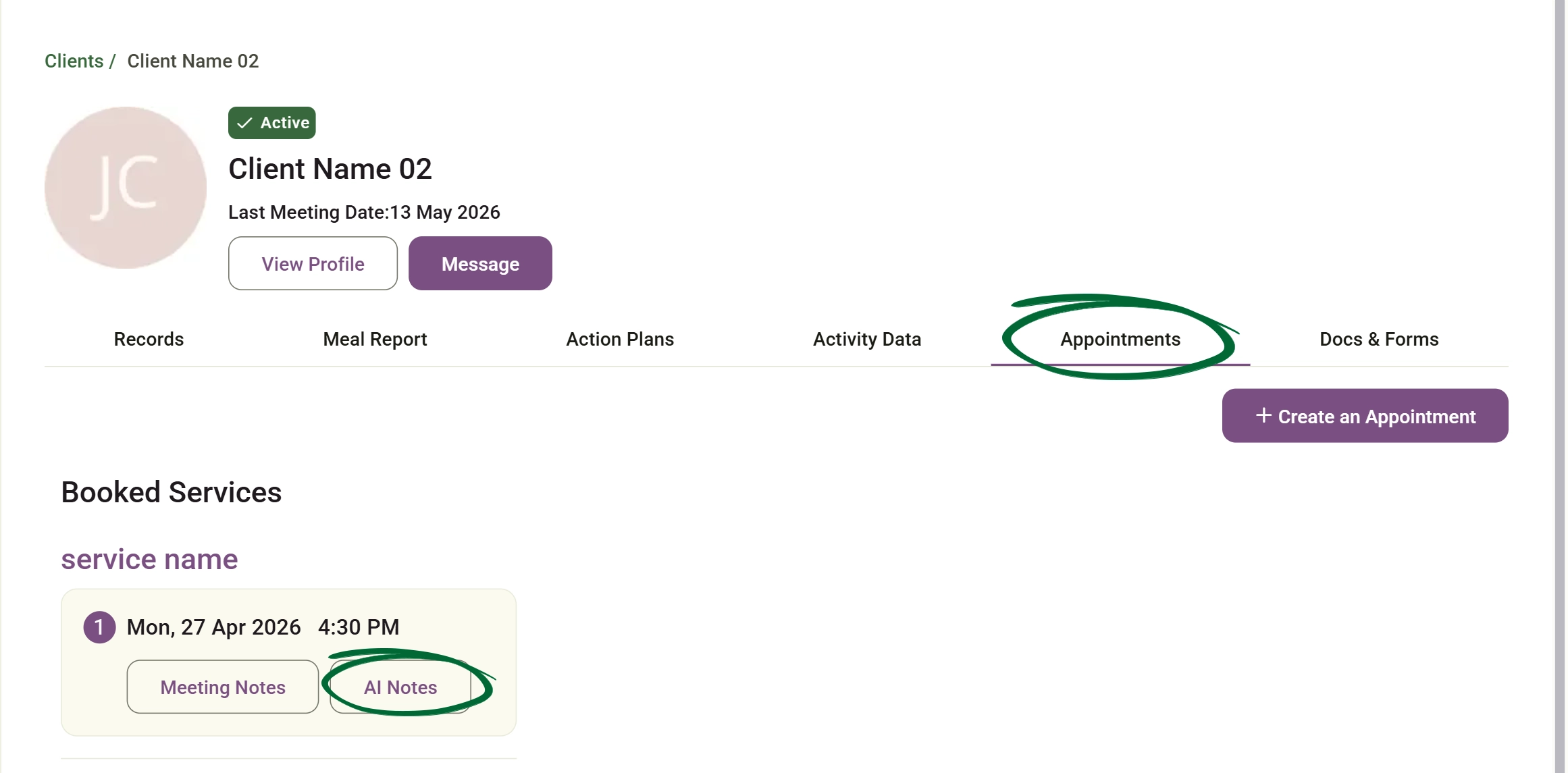
2
Open the Notes Section
Navigate to the notes area within the session interface.
3
Click “AI Notes”
Activate the AI assistant feature from the toolbar.
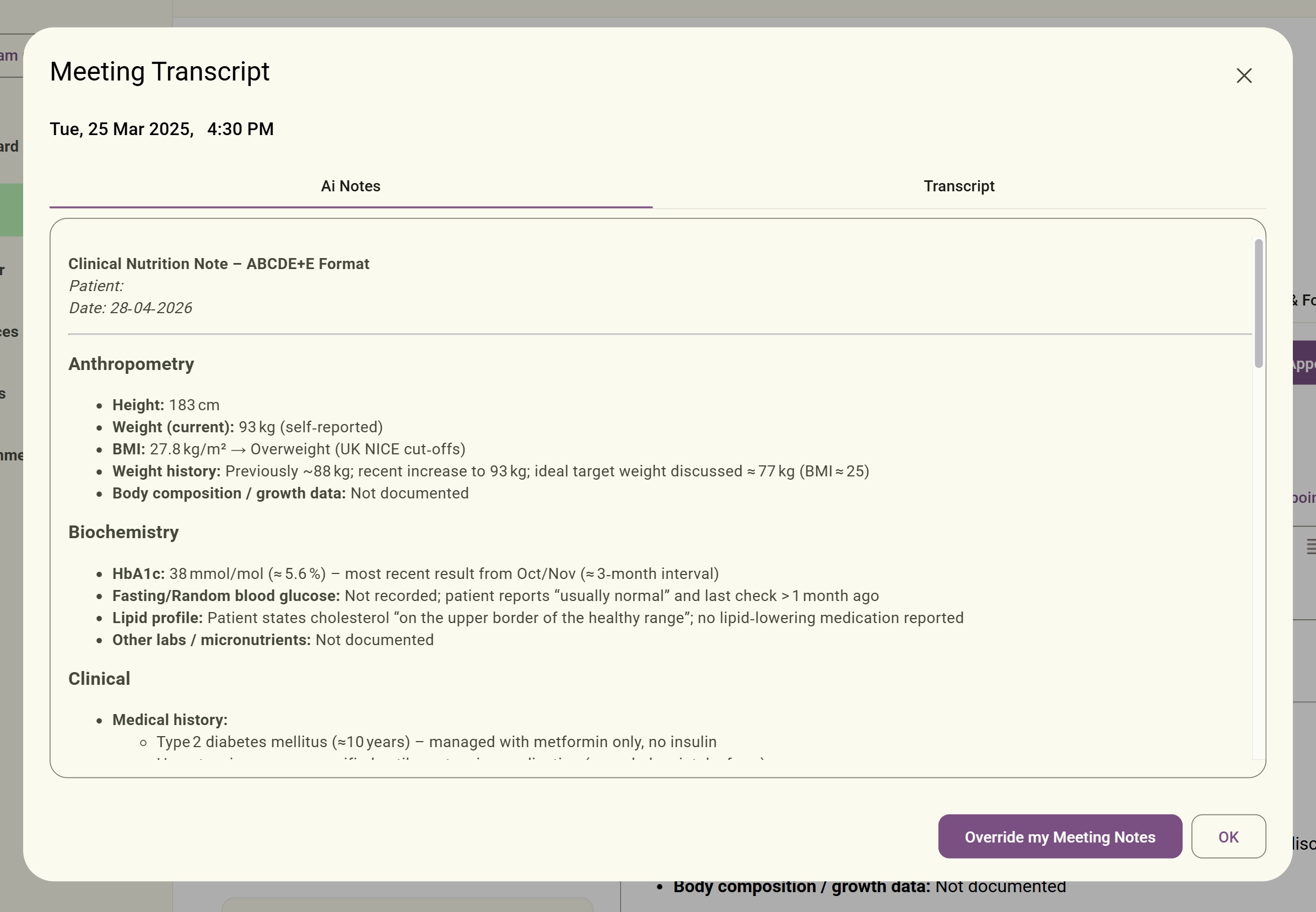
4
Generate Summary
Allow the AI to process the session context and capture key points into a structured summary.
5
Review & Edit
Always review the generated content and adjust it to ensure clinical accuracy before saving.
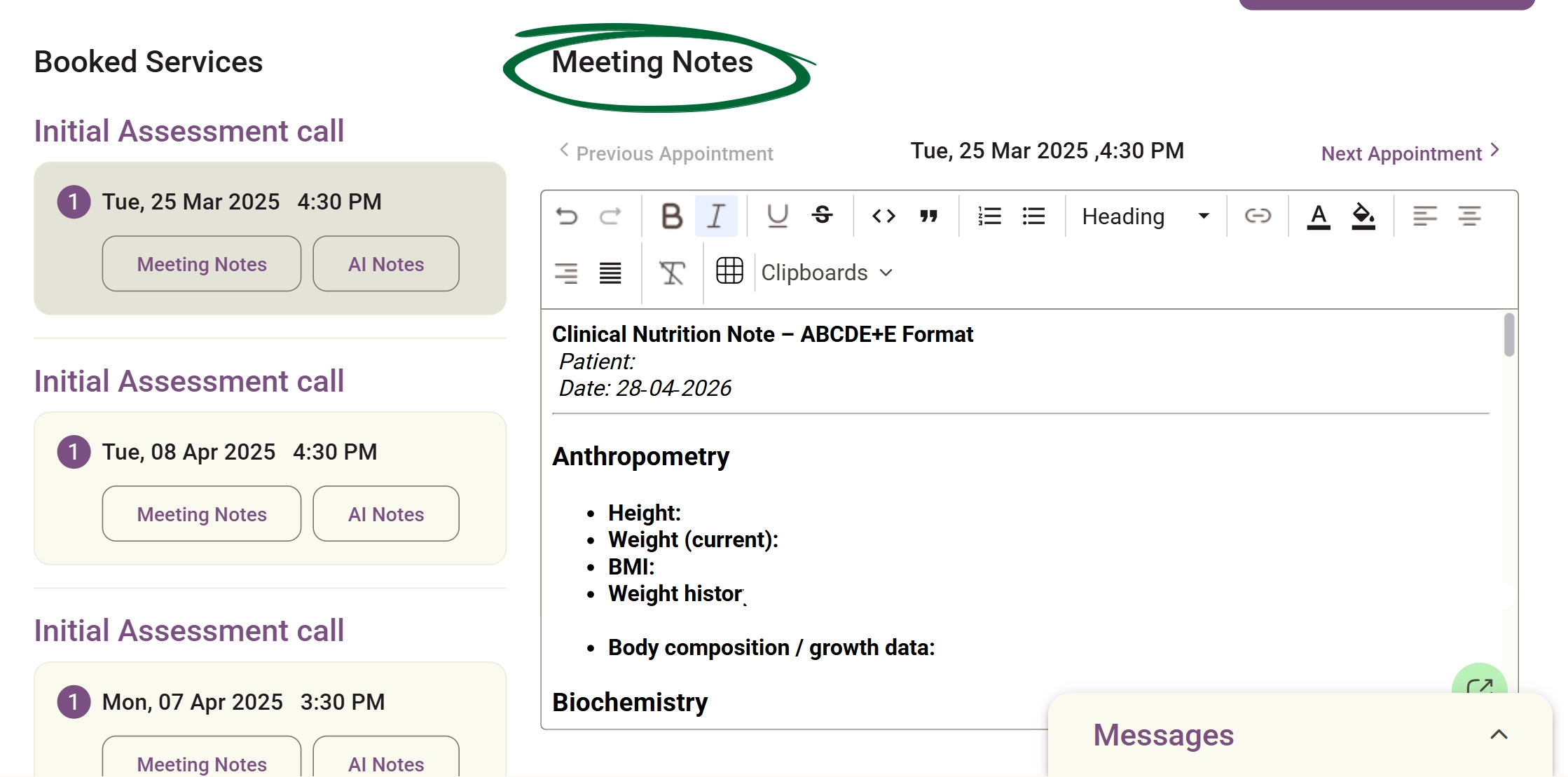
Tip: Use the AI assistant as a powerful drafting tool; once the heavy lifting is done, refine the text to match your unique clinical voice.
2. Choose Note Format (Settings)
Select your preferred clinical note structure to be applied across your practice.
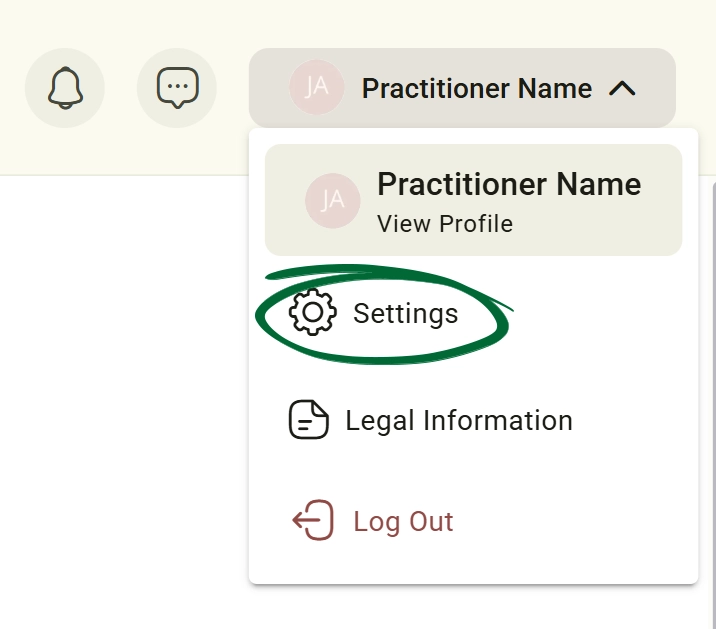
1
Go to Settings
Open the Settings menu from the main navigation sidebar.
2
Open General Settings
Navigate to the general configuration tab.
3
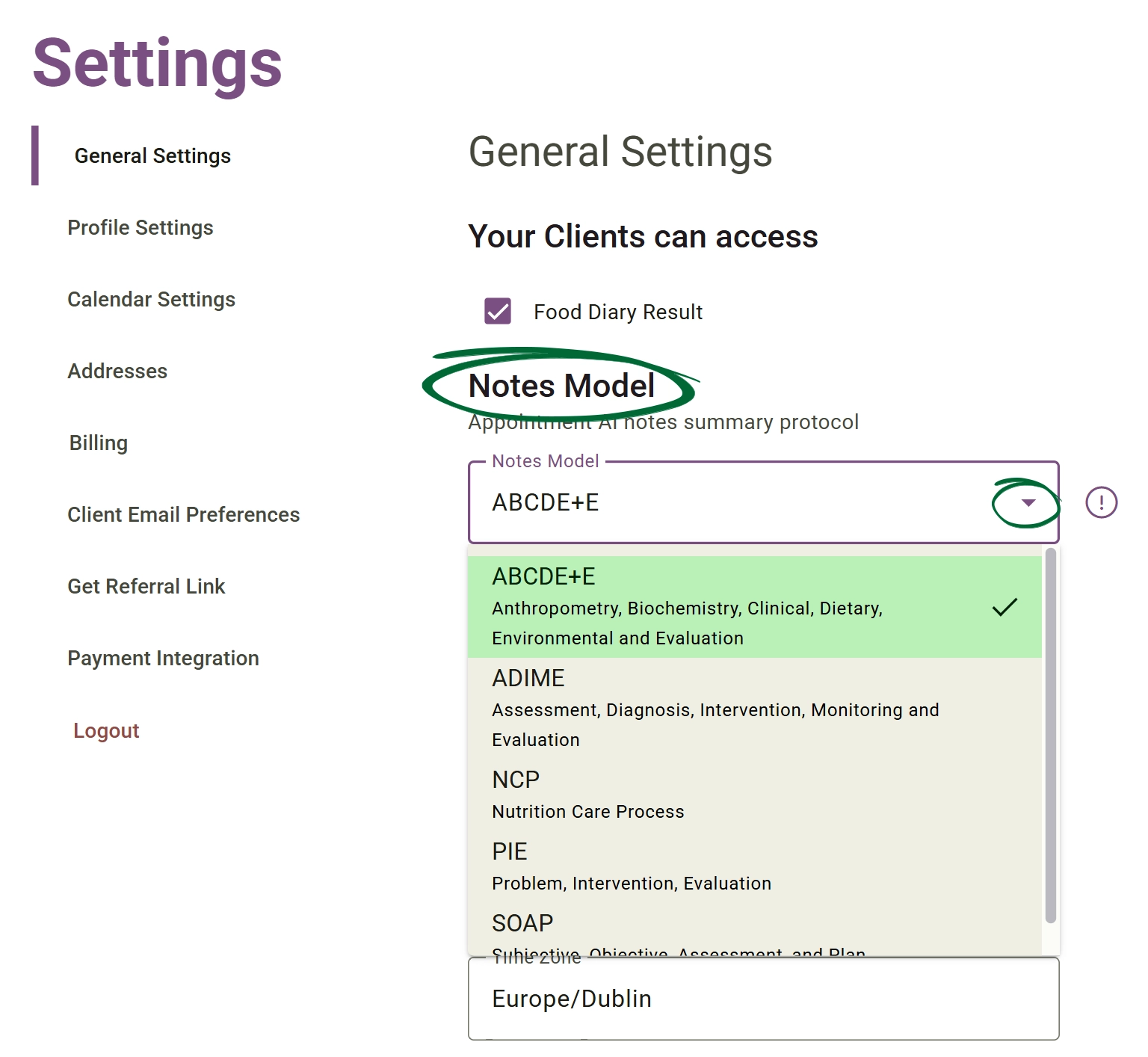
Find “Notes Model”
Locate the section dedicated to clinical documentation styles.
4
Select Format
Choose your preferred framework (e.g., SOAP, ADIME, NCP, or PIE).
5
Save Changes
Confirm your selection to update your global documentation defaults.
Tip: Setting your preferred note format once ensures that every AI-generated summary remains consistent throughout your practice's records.
Frequently Asked Questions (FAQs)
Can I change the note format for just one specific session?
The AI assistant uses your global default set in Settings. If you need a different format for a one-off session, we recommend generating the note and then using the "Refine" prompt to ask the AI to "Reformat this into [Format Name]."
Is the AI Assistant HIPAA/GDPR compliant?
Yes. Our AI models are designed with privacy-first protocols. Data is encrypted, and session transcripts are used only to generate your notes; they are not used to train global AI models.
What happens if the AI misses an important clinical detail?
The AI is a drafting assistant, not a replacement for clinical judgment. You have full editing control over every note. You can manually type in the missing detail or ask the AI to "Add a section about [Detail]" before saving.
Troubleshooting & Common Issues
Issue: AI summary is too long
Potential Solution: Use internal prompt commands like “Simplify” or “Shorten” to instruct the assistant to generate a more concise version.
Issue: Cannot see AI Assistant button
Potential Solution: Ensure you are inside an active client session. AI features are context-specific and only appear within the notes section of a live or recorded consultation.
Issue: Selected format not applied
Potential Solution: Double-check that you clicked Save Changes in Settings. Refresh your current session page to ensure the new formatting template has synced.
Issue: Information missing from summary
Potential Solution: The AI works best with clear session data. Ensure the consultation recording or manual input notes are comprehensive enough for the assistant to process.
Next Step
You’re now ready to streamline your documentation using AI! Continue exploring the platform to discover how these tools can further optimise your daily workflow.
Back to DashboardContact Support
Still need a hand?
Email Support: [email protected]